
How to Play Fix My Phone
Start with your own broken phone. Once it works, the Case Shelf prepares you for your first paying customer. Here is the opening route, including the stages a clean-looking screen can still be missing.
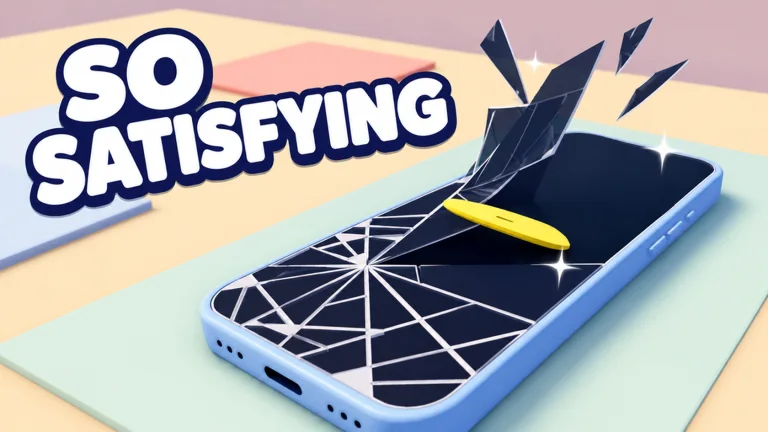
The screen repair, one stage at a time
This opening sequence is reported in AllThingsHow’s 20 October walkthrough. Follow the current stage counter; the final power-on test comes after the six screen-work stages.
| Stage | What to do | Ready to continue when… |
|---|---|---|
| 1 · Old glass | Drag the yellow pick over the broken pieces. | Every damaged section is removed. |
| 2 · Replacement | Select the glass in NEW PARTS. | The replacement sits on the phone. |
| 3 · Film | Pull the protective film down. | The film is fully peeled away. |
| 4 · Cleaning | Move the wipe over the remaining marks. | The cleaning stage advances. |
| 5 · Protection | Apply the screen protector. | The protector stage advances. |
| 6 · Bubbles | Sweep each bubble toward an edge. | The game confirms NO BUBBLES. |
| Final test | Choose TURN IT ON, then check the result. | The phone works; use LEAVE to exit. |
This is a cracked-screen job. The developer also describes battery and back-cover work on other jobs. Follow the repair shown on your phone; battery replacement is not an extra step in every screen repair.
Buy the Case Shelf before the case request
The opening walkthrough puts the Case Shelf after your own repair. It reports a $25 purchase, Pink Cloud becoming available and reaching Level 2. The next two checkpoints are Parts Cabinet at Level 3 and Bench 2 at Level 4.
These are dated opening checkpoints, not a complete price list. Read the current objective and purchase prompt if an update changes them.
From the counter to a completed customer order
- Talk at the counter using the displayed interaction (E in the keyboard walkthrough). Read the damage and any case request.
- Accept with I’LL FIX IT!, take the phone to the bench and choose PUT DOWN.
- Start the repair with the displayed control (R in that walkthrough), then complete its stages.
- If a case is requested, choose the matching case. The opening pink request uses Pink Cloud.
- Run the final test and check the completed-job result before leaving.
Touch players should use the corresponding on-screen controls. Pink is one opening request; read each new order rather than applying the same case to every customer.
Still stuck? Check the unfinished stage
Use the displayed stage to choose the next action. These checks follow the repair sequence above; they are not claims about a known game bug.
| What you see | Next check |
|---|---|
| Still carrying the phone | Place it on the bench before starting the repair. |
| Glass stage has not moved on | Look for a remaining broken section. |
| Film or cleaning stage remains | Finish the visible film or mark before using the next tool. |
| Bubbles still visible | Move them outward until the stage counter advances. |
| Case picker is waiting | Read the requested color and check the Case Shelf unlock. |
| The screen looks repaired | Complete the power-on test; appearance alone is not completion. |
Sources for this guide
- AllThingsHow opening walkthrough · 20 Oct 2026
- Official Roblox game description
- VendoPlus tutorial video · 19 Oct 2026
Published information and attributed reports; no personal in-game playtest is claimed. Read the source boundaries.